1. Enable MCP server in OIC Projects
View detailed article to enable MCP server here
2. Open OIC Projects, go to AI Agents tab and add tool
4. Add the description and parameteres (OIC Input) and make them as required if any.
1. Enable MCP server in OIC Projects
View detailed article to enable MCP server here
2. Open OIC Projects, go to AI Agents tab and add tool
If you want to expose your Oracle Integration Cloud (OIC) integrations to LLMs and AI agents using the Model Context Protocol (MCP), you need to configure the following things across both OIC and Oracle Cloud Infrastructure (OCI).
1. Create an Integration in OIC project and activate it
Oracle AI Agent Studio allows you to create custom AI agents capable of reading unstructured documents and extracting relevant data directly into a structured format.
This article explains how to enable file attachments, configure the necessary tools, and format the extracted data into JSON.
Step 1: Enable the File Upload Option in the Agent Team
Before an agent can process a document, you must provide a way for users to upload files.
A while ago, I had a big list of website links saved in an Excel file—over 700 of them! I needed to find out the title of each website. Doing it by hand would mean opening every link, copying the title, and pasting it back into Excel. That would take forever, and I’d probably make mistakes along the way.
The Problem
When you have a lot of data, doing simple, repetitive work by hand is really slow and easy to mess up. It’s boring and you can easily skip a link or copy something wrong.
My Solution: Using Python
So I decided to let my computer do the work for me. Python is a programming language that makes things like this much easier. I wrote a short script that reads all the links from my Excel file, visits each website on its own, grabs the title, and then saves everything back into Excel.
Here’s the script I used:
How to Run the Script (Even If You Don’t Have Python Installed)
You don’t need to install anything on your computer. There’s a website called Google Colab where you can run Python scripts for free:
Automation can really make life easier!
<![CDATA[CASDK-0041: An error occurred while invoking the REST endpoint.[[CloudInvocationException [ java.lang.ClassCastException: java.lang.ClassCastException: class org.bouncycastle.asn1.x509.SubjectPublicKeyInfo cannot be cast to class org.bouncycastle.openssl.PEMKeyPair (org.bouncycastle.asn1.x509.SubjectPublicKeyInfo and org.bouncycastle.openssl.PEMKeyPair are in unnamed module of loader 'app') ]]].The 500 Internal Server Error is a very general HTTP status code that means something has gone wrong on the server side, but the target service could not be more specific on what the exact problem is. You can trace the cURL representation of the request sent to the target service from the Oracle Integration Cloud server logs. Try invoking the target service using cURL. If the problem persists, contact the target service admin.]]>
This error occurs due to a mismatch in the private key format. The key must be in PEM format for proper authentication.
Converting the private key to the correct PEM format will resolve this issue. Use the following command to perform the conversion:
ssh-keygen -p -f <KEY> -N '' -t rsa -m pemReplace <KEY> with the actual private key file name.
If you face this issue in Oracle Cloud OIC, ensure your private key is in the correct PEM format. This simple conversion step can save valuable troubleshooting time and ensure smooth integration execution.
Trigger, Invoke, and Trigger & Invoke in OIC REST Connections
In Oracle Integration Cloud (OIC), REST connections allow systems to communicate. You can configure a connection in one of three ways: Trigger, Invoke, or Trigger and Invoke.
Trigger: OIC acts as a server, exposing a REST API so that external systems can receive data. Example: Third-party service receiving data using OIC Rest API.
Invoke: OIC acts as a client, calling external REST services. Example: Fetching data from an external API like a CRM system.
Trigger and Invoke: OIC can both receive and send requests using the same connection, enabling two-way communication. Example: Receiving customer data and validating it via an external service in a single flow.
By understanding these roles, you can set up flexible and efficient integrations tailored to your needs.
Let's create a sample REST API using OIC with below steps
Step1: Create REST connection
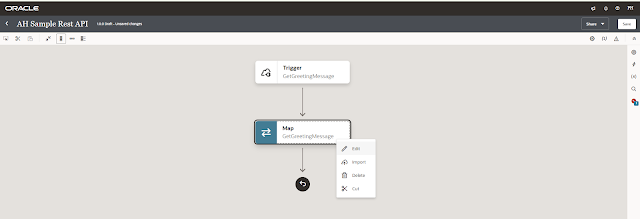
Step2: Create Integration by using REST connection
Step3: Configure parameters if any and response as well
Step4: Map the elements for response if required and validate
Step5: Activate the Integration and test
We need a REST connection to create REST API using OIC.
Navigate to Design --> Connections.